
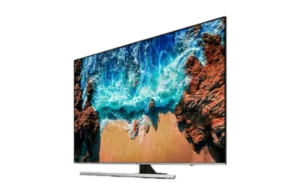
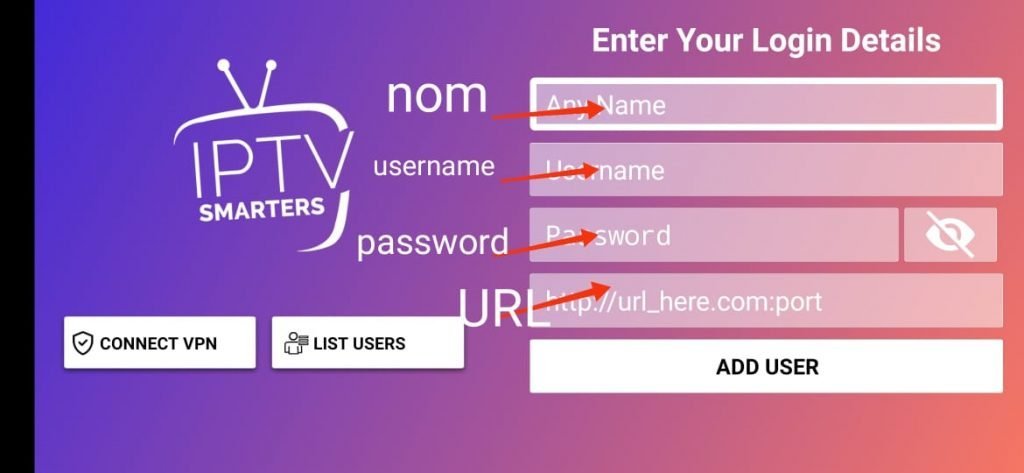
1- Download the IPTV Smarters Pro app from the APP store, enter IPTV Smarters in the APP store search and it will appear.

2- Choose to connect with XTREAM codes API to avoid entering all m3u files.
3- Enter your emailed login details and press ADD USER to connect.
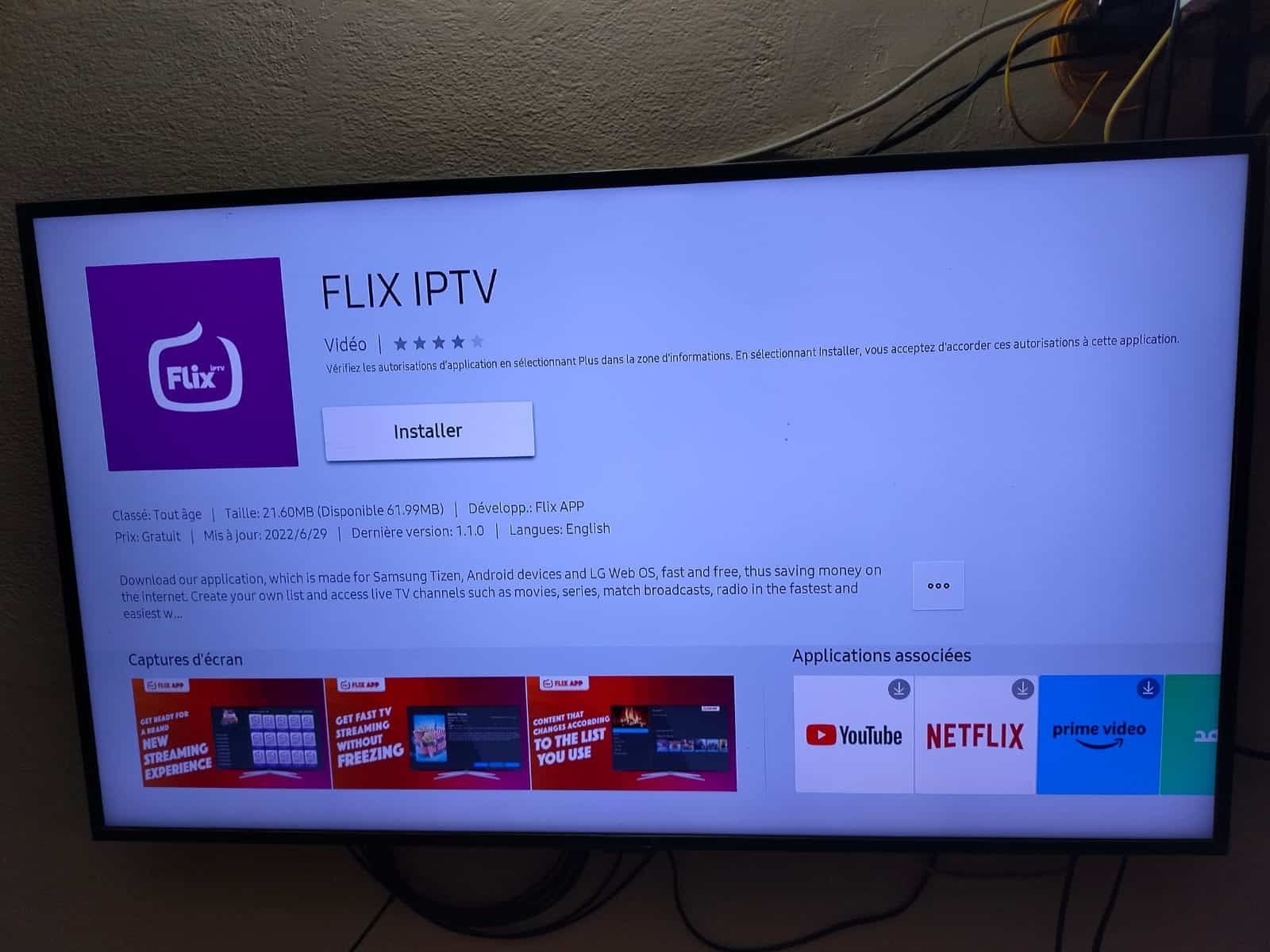
1. Open the App Store on your Samsung or LG Smart TV and search for Flix IPTV.
2. Select the app in the Smart TV App Store and click Install to download the app.
3. The application will be installed on your Smart TV. Open the IPTV app and go to Settings.
4. Select the user account and write down the Mac address.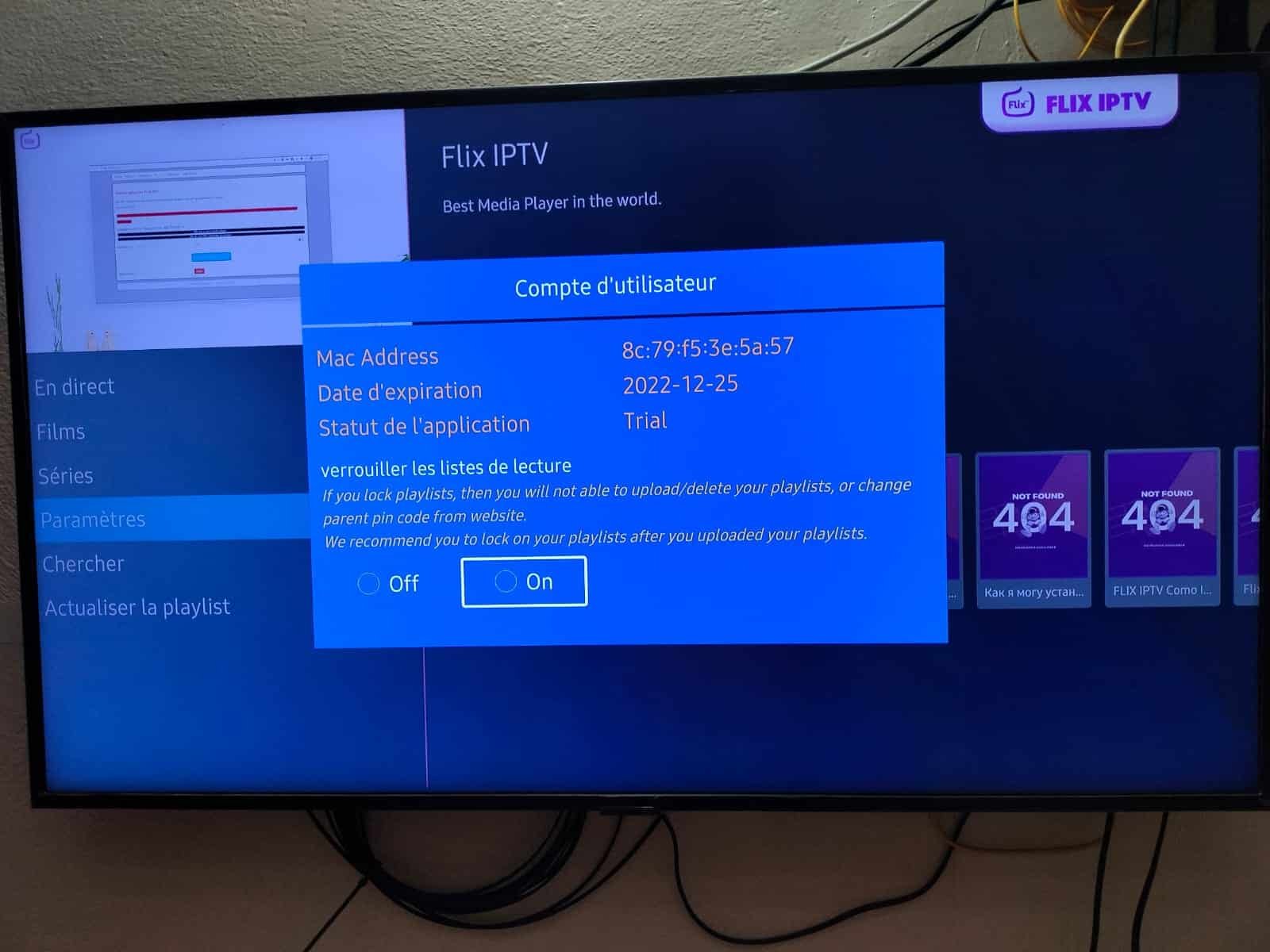
5. On your smartphone/PC, use any browser to visit the Flix IPTV website: https://flixapp.tv/mylist
6. Enter the details: MAC address and URL.
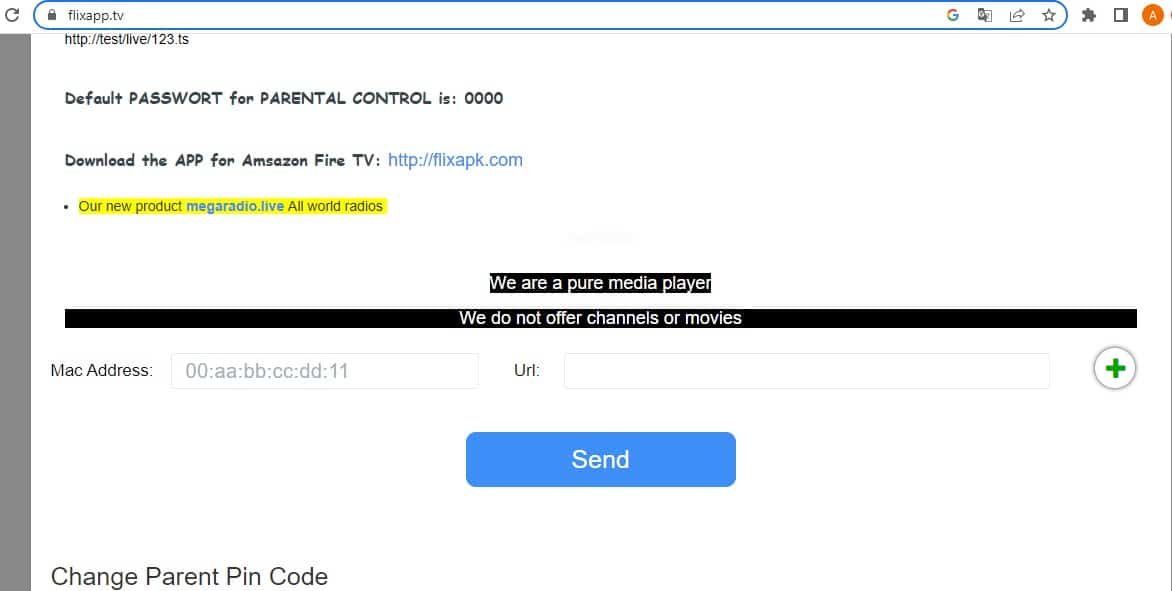
7. Select Send and you are ready to stream the content to your Flix IPTV.
1. Open the Play Store on your Android device and search for IBO Player. 2.Now open the app and activate it using the device ID and device key on the website provided in the app.
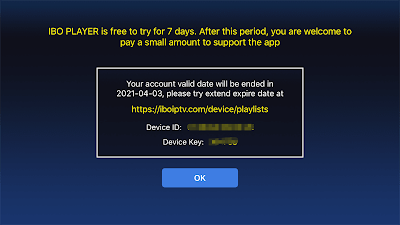
3. Now go to the website and enter the Mac address (Device ID) and the device key (Device Key).
4. Select the M3u link or Xtream code to upload your data. The data will be sent to your email address.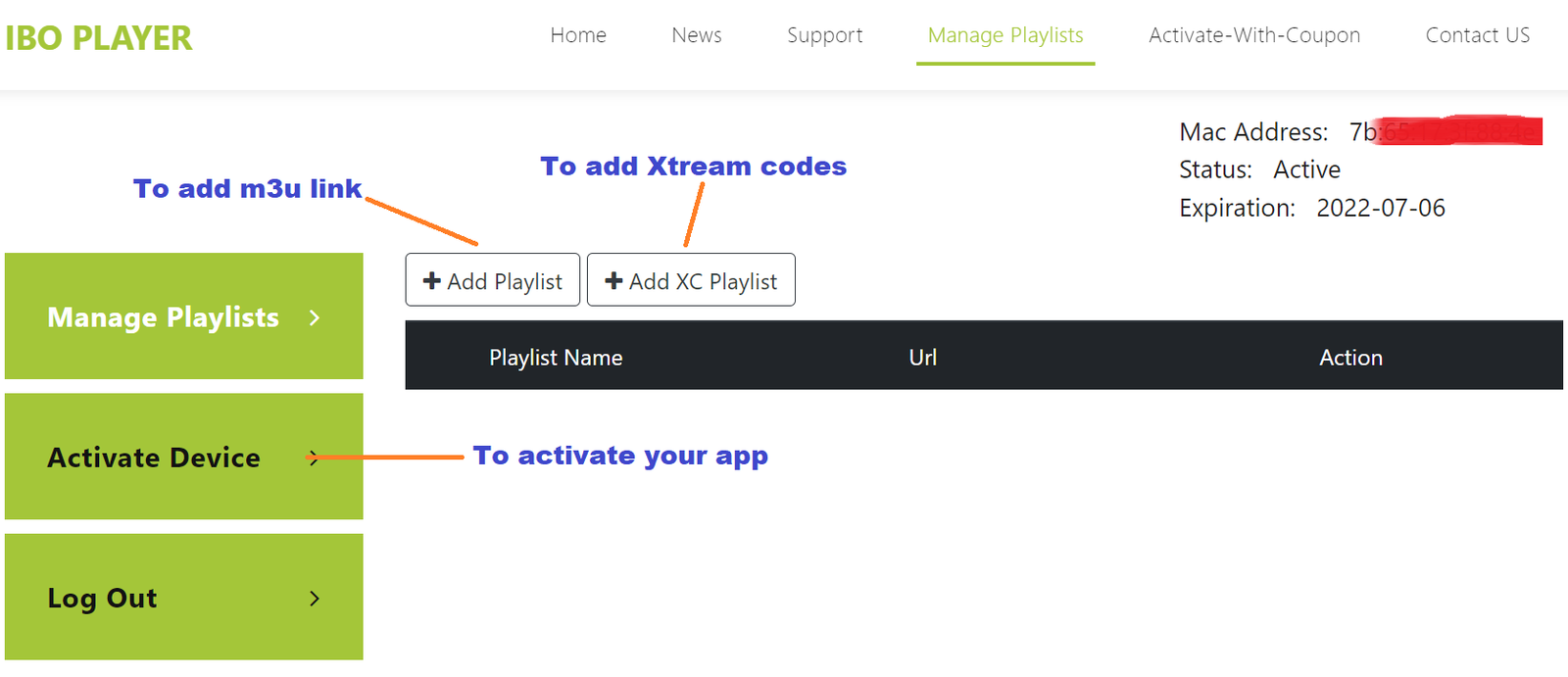 5. Restart your app and enjoy!
1. Install Set TV from the App Store on your Smart TV.
2. Open the IPTV Player app and put a check mark under the MAC address displayed on the screen.
3. Go to the SetIPTV activation page and enter your MAC address.
https://setsysteme.com/set.app
4. Enter the MAC address and click the pound icon to confirm.
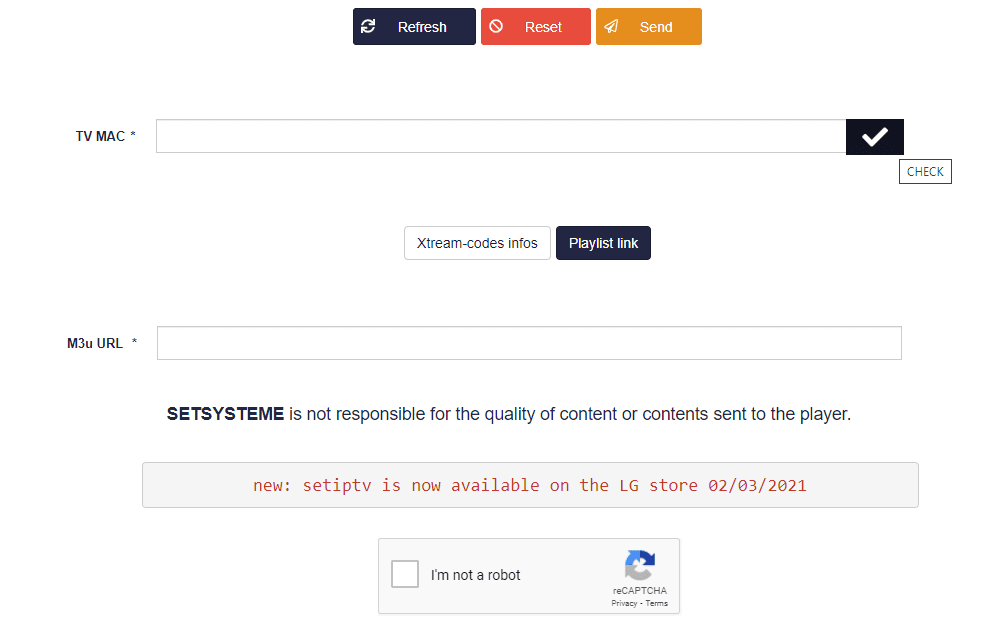
5. After verification, enter the M3U URL associated with your IPTV provider.
6. Then click Submit to download the M3U URL to your device.
7. Relaunch the app and stream videos from your IPTV provider.
NOTE: The SMART IPTV application is paid (5 or 6 €). It allows a 7-day trial, after which you have to pay to use the application. Here's how to activate it.
How to install your iptv subscription on your smart tv using smart iptv application?
Pay for activation of the SMART IPTV application:
1. Go to the link: https://siptv.eu/activation
2. Enter your MAC address (with the “:”).
3. Enter an email address.
Choose the payment method that suits you: Paypal or CB (activation of the Smart IPTV application is instant).
5. Confirm the payment and that's it.
It is highly recommended to learn how to add your playlist to the Smart iptv application yourself as it is possible to lose the playlist at any time.
It's easy to activate your subscription yourself and learn how to add the link to your m3u_plus file directly into your application without anyone having to help you. In order to do this:
1- Open the smart iptv application on your smart TV and your TV's Mac address will appear, which you need to activate it on the smart iptv website.
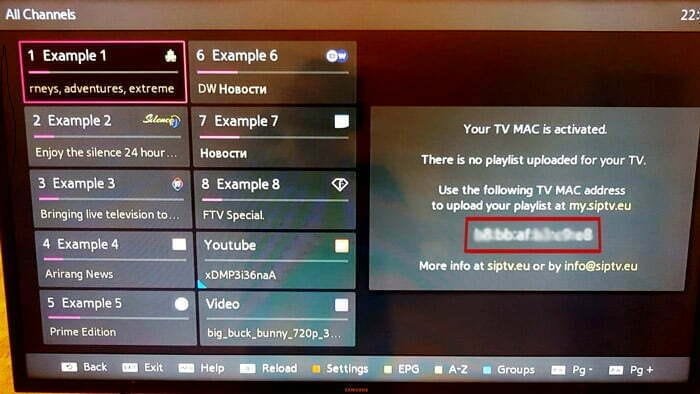
2- Go to smart iptv website to activate your subscription. Here is the link: http://siptv.eu/mylist
3- Check the capatcha, enter your Mac address and the m3u link received by email and press “Send”. Then your subscription to the Smart IPTV application will be activated.
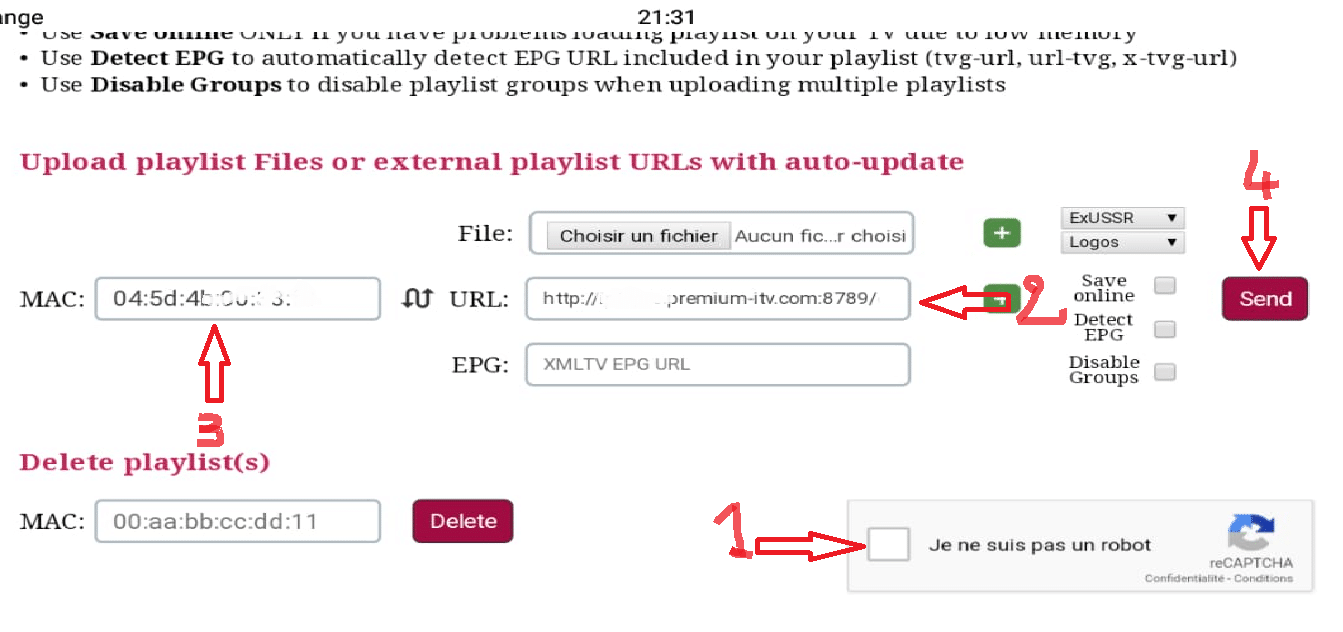
5- Restart the smart iptv application and wait for the channel list to download.
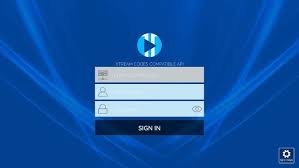
1. Open your Play Store and search for XCIPTV Player.

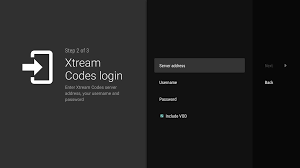
1. Open your Play Store and search for TiviMate IPTV Player.

1. Open the Play Store on your Android device and search for IBO Player.2.Now open the app and activate it using the device ID and device key on the website provided in the app.
3. Now go to the website and enter the Mac address (Device ID) and the device key (Device Key).
4. Select the M3u link or Xtream code to upload your data. The data will be sent to your email address.5. Restart your app and enjoy!

1- Download the iptv smarters pro app from the APP store, enter iptv smarters in the APP store search and it will appear. 2- Choose to connect with XTREAM codes API to avoid entering all m3u files.
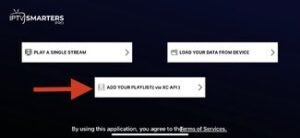
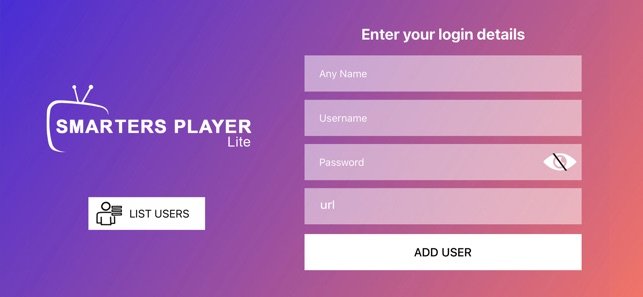
3- Enter your emailed login details and press ADD USER to connect.
1. Open the App Store on your Samsung or LG Smart TV and search for Flix IPTV.
2. Select the app in the Smart TV App Store and click Install to download the app.
3. The application will be installed on your Smart TV. Open the IPTV app and go to Settings.
4. Select the user account and write down the Mac address.
5. On your smartphone/PC, use any browser to visit the Flix IPTV website: https://flixapp.tv/mylist
6. Enter the details: MAC address and URL.
7. Select Send and you are ready to stream the content to your Flix IPTV.
1. Open the Play Store on your Android device and search for IBO Player.2.Now open the app and activate it using the device ID and device key on the website provided in the app.
3. Now go to the website and enter the Mac address (Device ID) and the device key (Device Key).
4. Select the M3u link or Xtream code to upload your data. The data will be sent to your email address.5. Restart your app and enjoy!
1- Open your Chrome, Firefox or Apple Safari browser and go to this link: https://iptvstreamplayer.com/
2- Depending on your PC (Mac, Windows, etc.), click “Download” and wait for the download to complete. Then install the app.
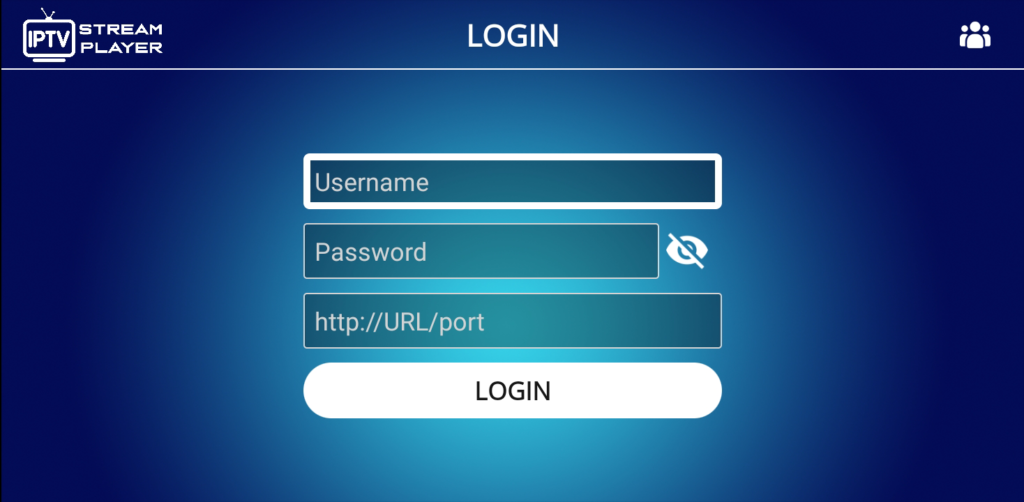
 3- Now open the app and click on “Log in with a new user account”.
4- Enter your emailed login details and press ADD USER to connect.
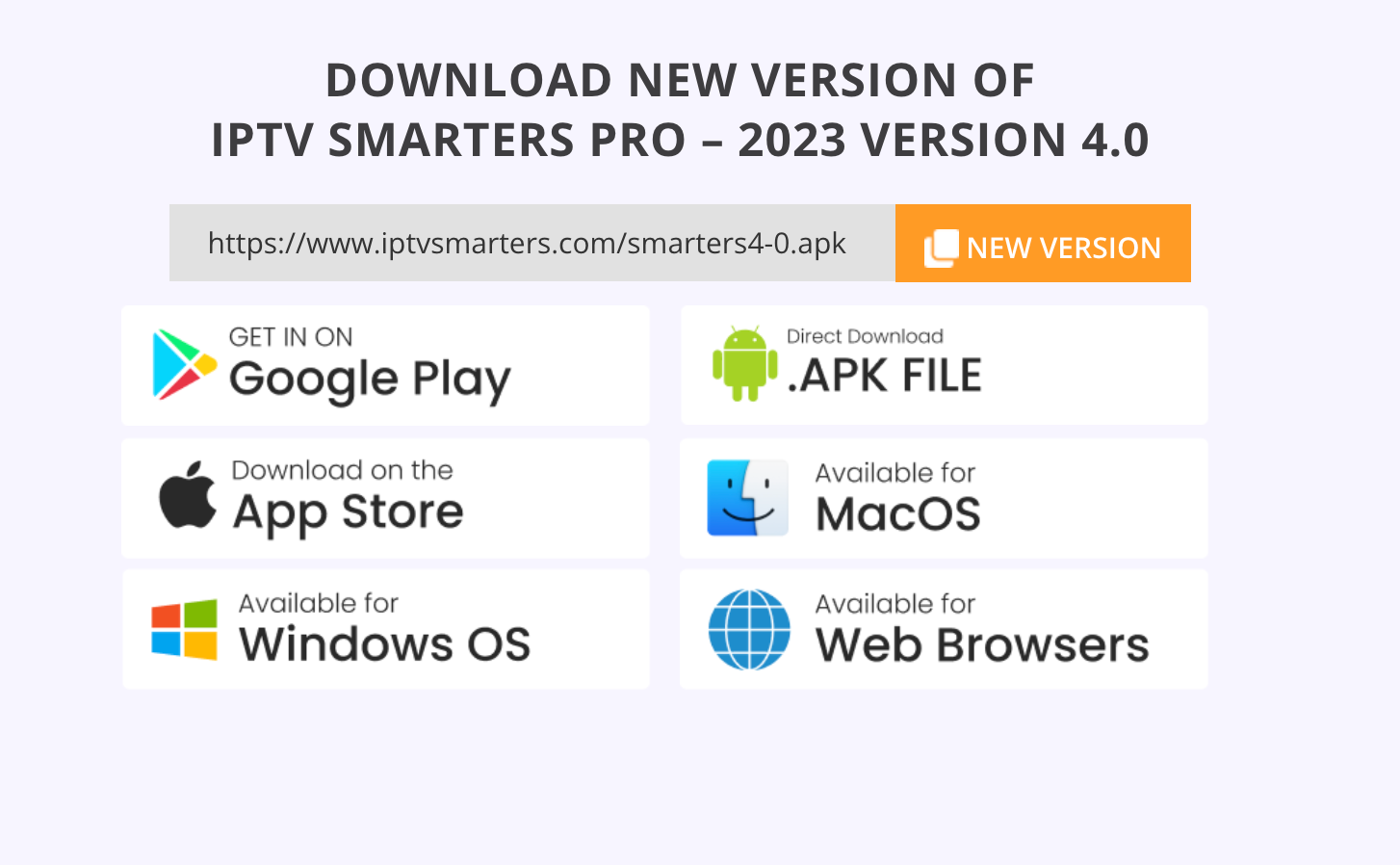
1- Open your Chrome, Firefox or Apple Safari browser and go to this link: https://www.iptvsmarters.com/#downloads
2- Depending on your PC (Mac, Windows, etc.), click “Download” and wait for the download to complete. Then install the app.
3- Enter your emailed login details and press ADD USER to connect.
1. We first install the Downloader app
This app will help you download IPTV Smarter on FireStick (because browser downloads are not allowed).
Also read our detailed guide about How to download apps on FireStick using Downloader
2. click on the Search > Search Option on the FireStick home screen
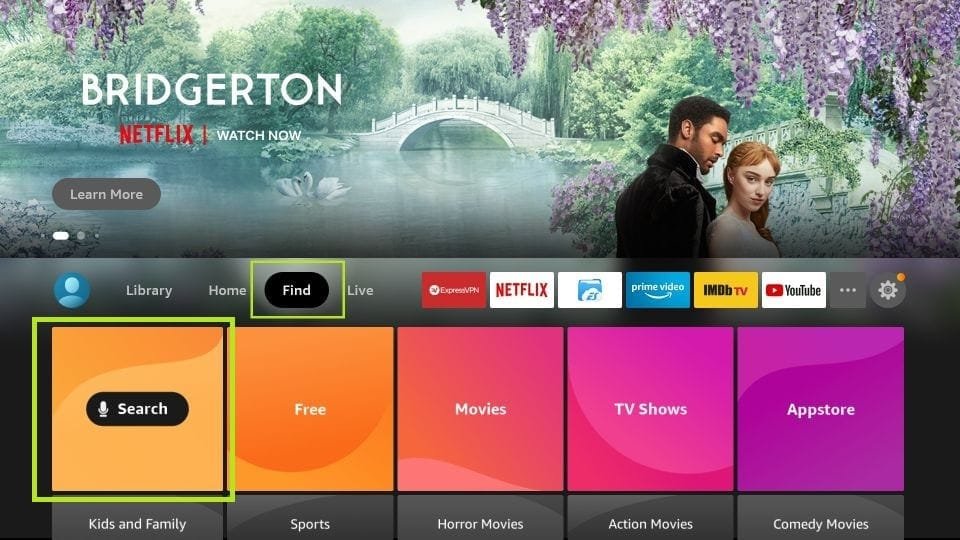
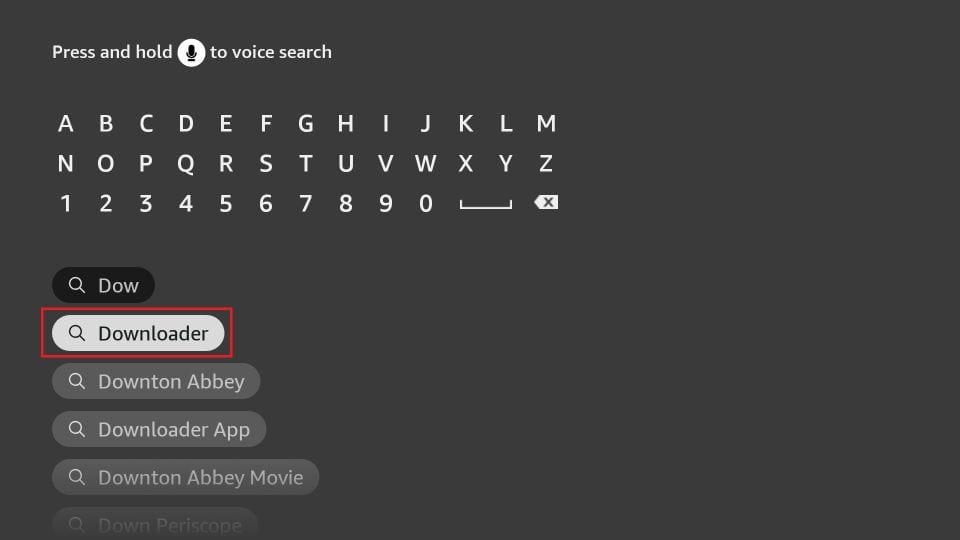
3. Enter the name of the application (this is Downloader)
click on the Downloader option when displayed in search results
Choose the one Downloader icon on the following screen and download and install the app.
 4. After installing the downloader app, return to the FireStick home screen
Click in the menu bar Settings.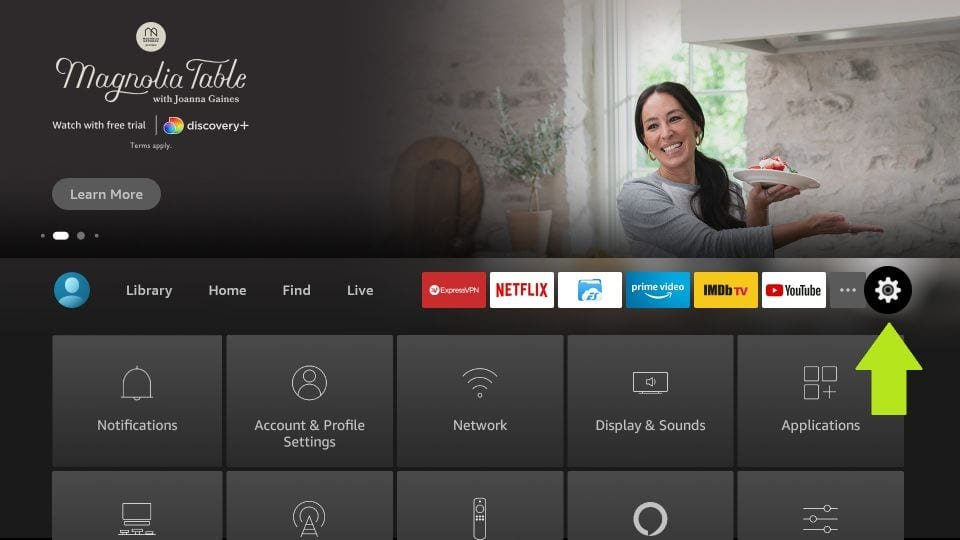 5. In Settings, select the option My Fire TV.
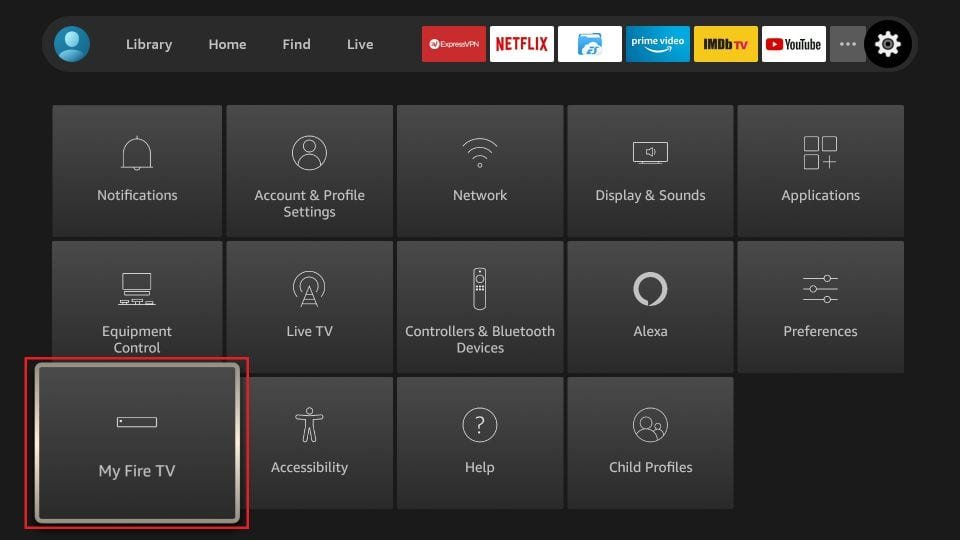 6. When the following options appear on the next screen, click Developer options
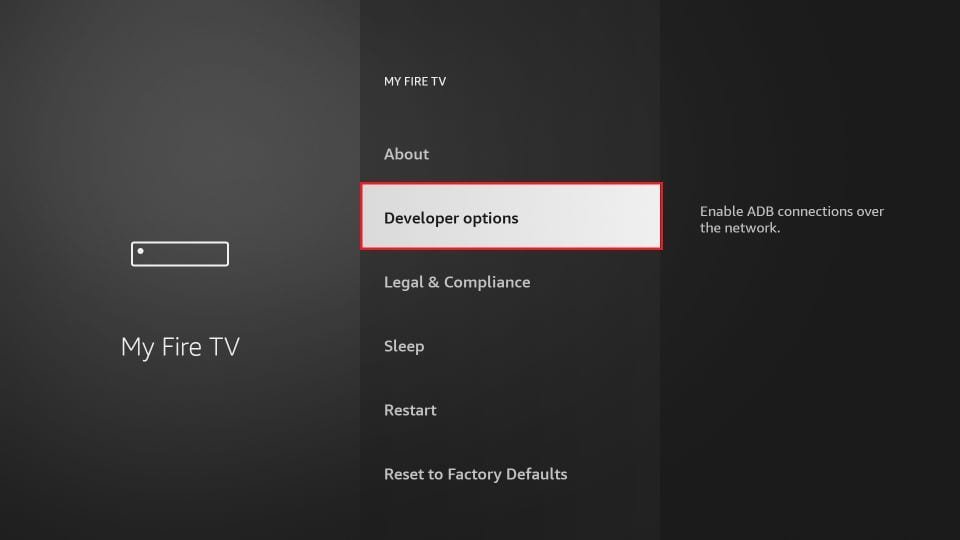 7. click on Install from unknown applications.
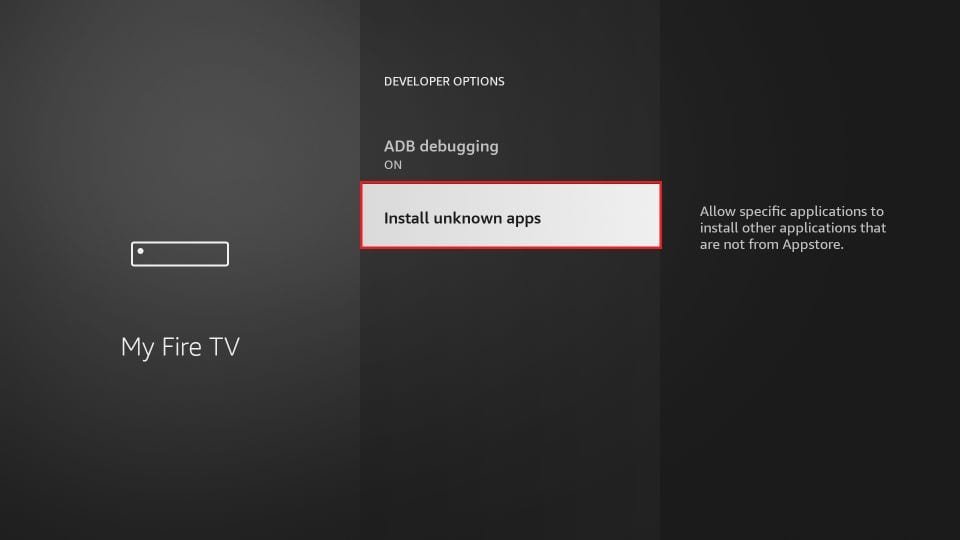 8. click on Downloader to change the status to ON
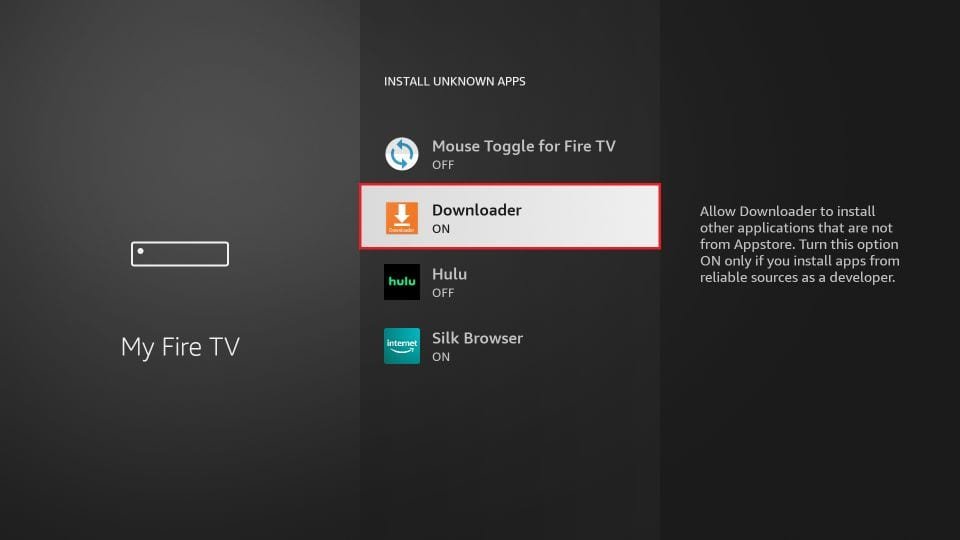 You have now configured the FireStick settings so that the installation of IPTV smarters and other third-party apps is possible. Follow the steps below:
9. You can now do that Downloader app
When you first launch this application, you will see a series of prompts. Ignore these until you see the following screen
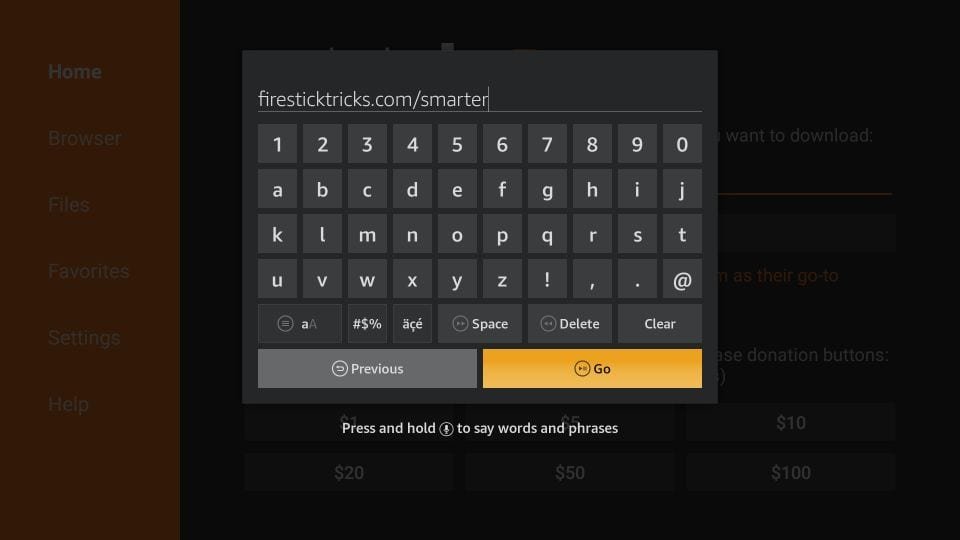
In this screen you need to click on the URL text box on the right side (make sure Home page option is selected in the left menu) where it says 'http://'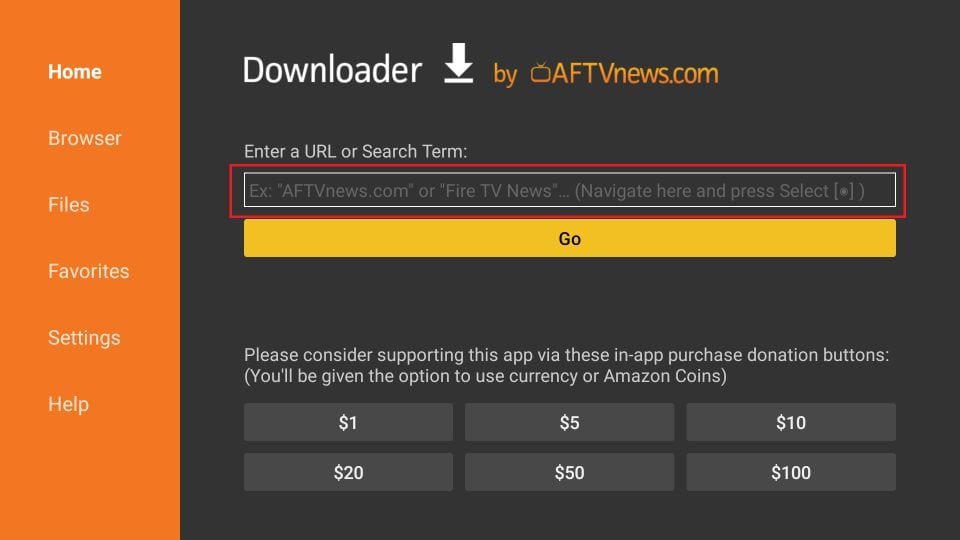
10. In this window, enter the following path: https://www.firesticktricks.com/smarter
click on GO
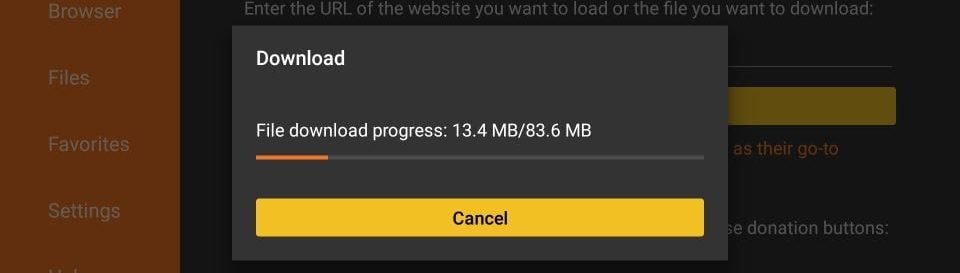
11. Wait a minute or two for the IPTV Smarter to download on your FireStick.
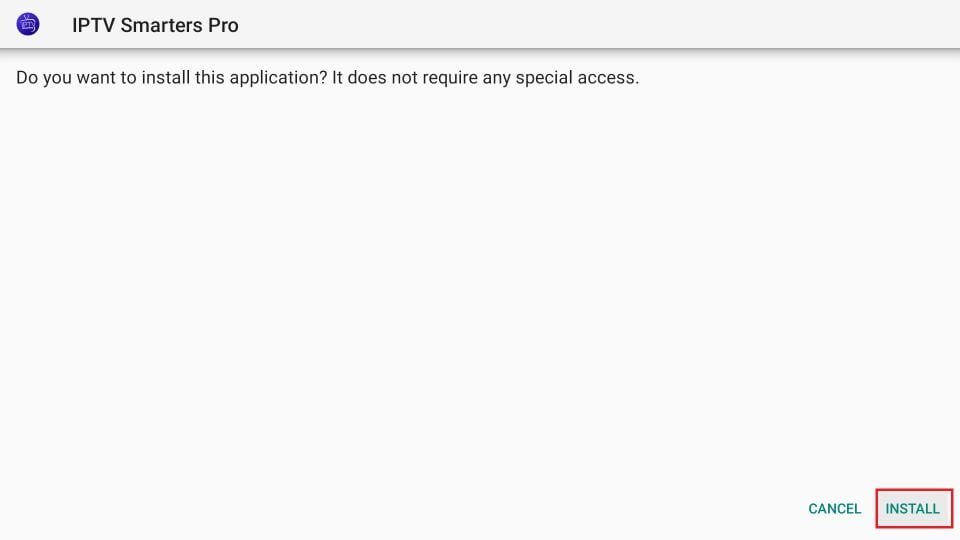
 12. When the download is complete, the downloader app will run the APK file and the installation will begin.
click on Install
 13. Wait for the installation to complete.
14. The installation is completed with this App installed Report
You can now click OPEN and get started with IPTV Smarters
I recommend choosing DONE so you can first delete the APK file to save storage space on FireStick.
15. Choose to connect with XTREAM codes API to avoid entering all m3u files.
16- Enter your emailed login details and press ADD USER to connect.
1. We first install the Downloader app
This app will help you to download Flix IPTV on FireStick (because browser downloads are not allowed).
Also read our detailed guide about How to download apps on FireStick using Downloader
2. click on the Search > Search Option on the FireStick home screen
3. Enter the name of the application (this is Downloader)
click on the Downloader option when displayed in search results
Choose the one Downloader icon on the following screen and download and install the app.
4. After installing the downloader app, return to the FireStick home screen
Click in the menu bar Settings.
5. In Settings, select the option My Fire TV.
6. When the following options appear on the next screen, click Developer options
7. click on Install from unknown applications.
8. click on Downloader to change the status to ON
You have now configured the FireStick settings so that the installation of Flix IPTV and other third-party apps is possible. Follow the steps below:
9. You can now do that Downloader app
When you first launch this application, you will see a series of prompts. Ignore these until you see the following screen
In this screen you need to click on the URL text box on the right side (make sure Home page option is selected in the left menu) where it says 'http://'
10. In this window, enter the following path: http://flixapk.net/flix.apk
click on GO
11. Wait a minute or two for the Flix IPTV to download on your FireStick.
12. When the download is complete, the downloader app will run the APK file and the installation will begin.
click on Install
13. Wait for the installation to complete.
14. The installation is completed with this App installed Report
You can now click OPEN and get started with FLIX IPTV
I recommend choosing DONE so you can first delete the APK file to save storage space on FireStick.
15. Select the user account and note the Mac address.
16. Use any browser on your smartphone/PC to visit the Flix IPTV website: https://flixapp.tv/mylist
17. Enter the details: Mac address and URL.
18. Select Send and you are ready to stream the content to your Flix IPTV.
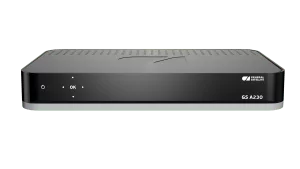
1. Go to the back of your Formuler Z where the Mac ID is indicated.

2. Make sure you provide us with the Mac ID when ordering your package. Mac ID usually starts with 00:1A…
You can also find it on the MyTvOnline app.
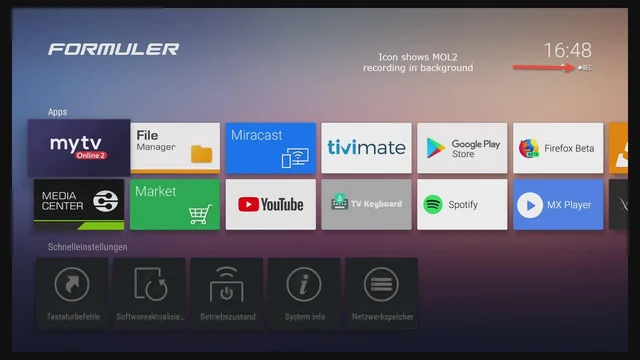
3. Once we receive your order with the Mac ID, we will send you the portal URL. Make sure to enter the portal URL in the MyTvOnline app (no username or password required).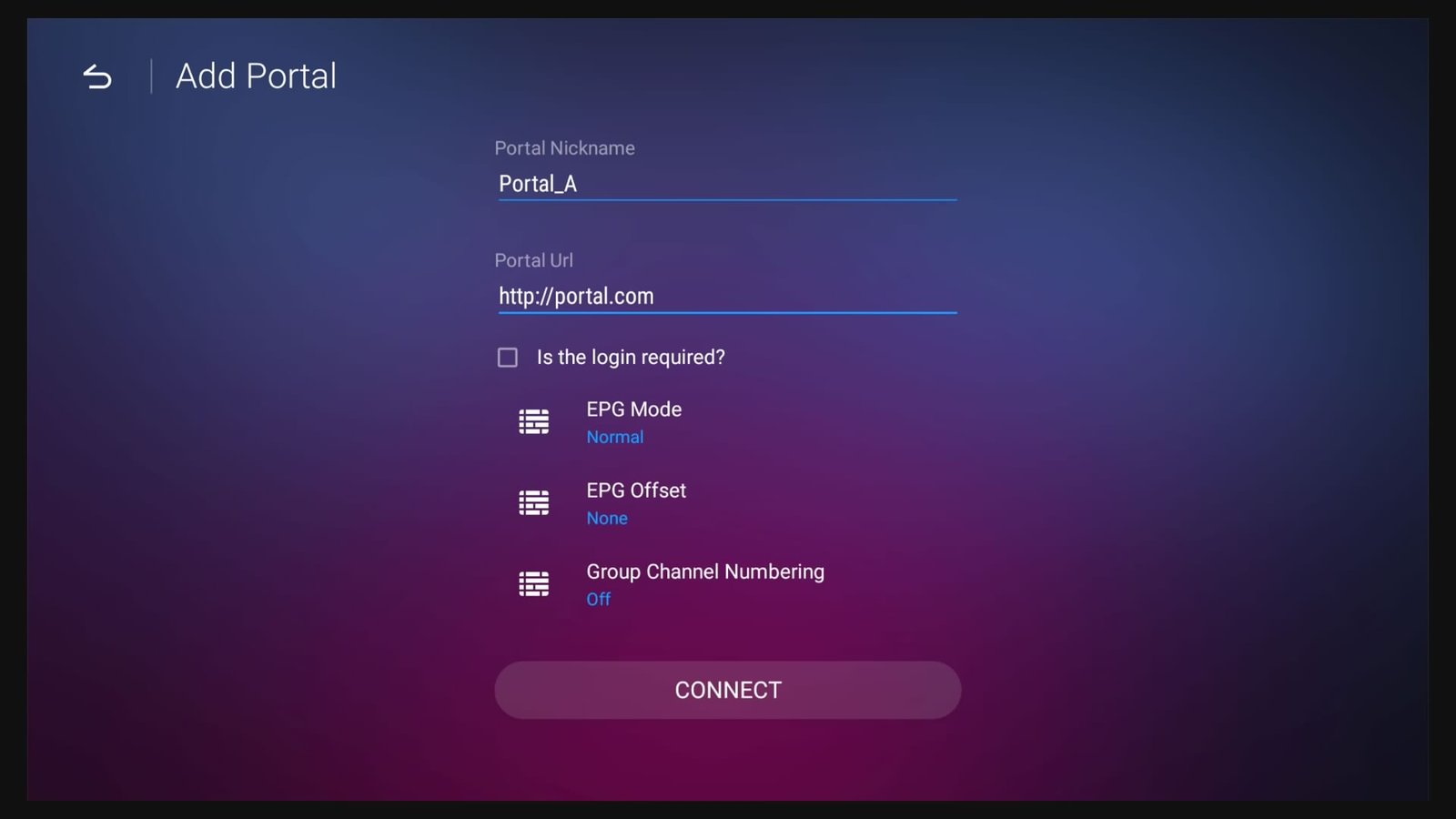
1. Go to the back of your Mag where the Mac ID (Or Mac Address) is indicated.
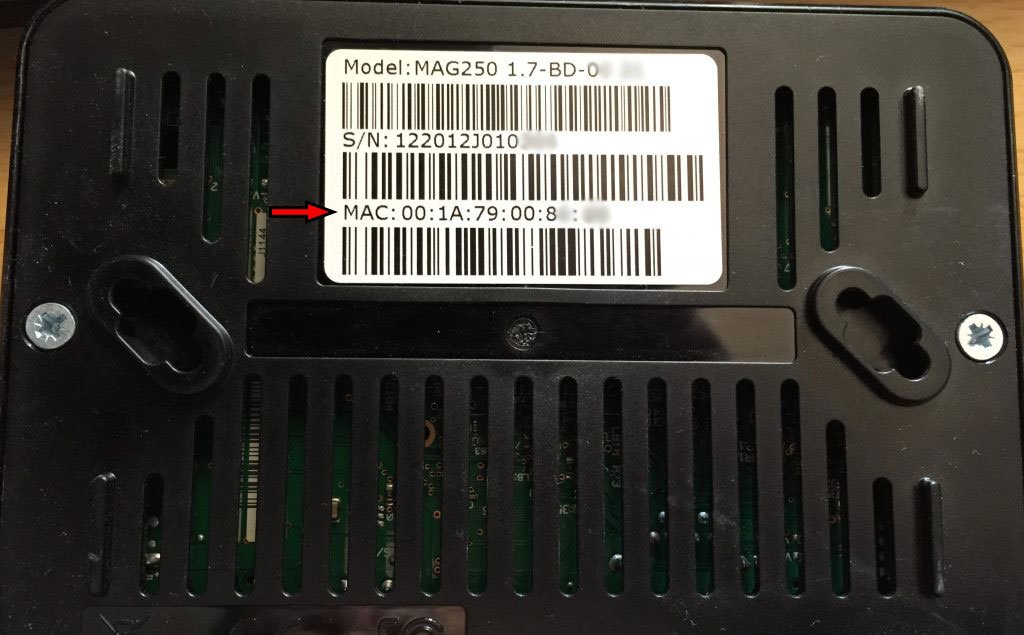 2. Make sure you provide us with the Mac ID when ordering your package. The Mac ID usually starts with 00:1A….
3. Go to Settings, then System Settings, then Servers, Then Portal.
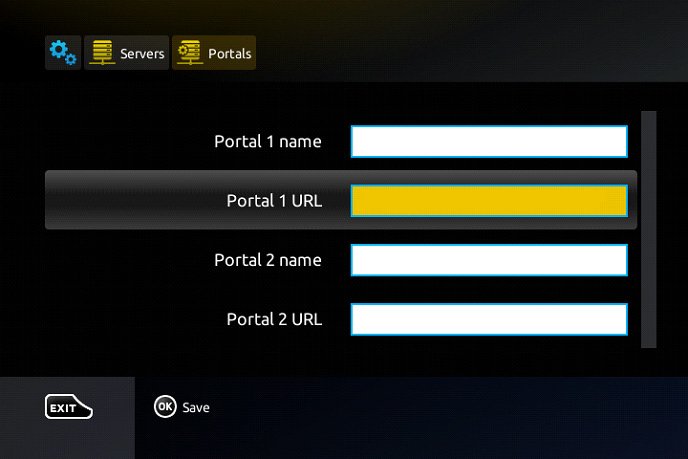 4. Enter the portal URL that we emailed you.
After completing all the above steps, press “EXIT” on the remote twice to restart the gate. Now everything is ready to watch live TV…
 English
  German
  Dutch
Dutch  Danish
  Swedish
  Norwegian